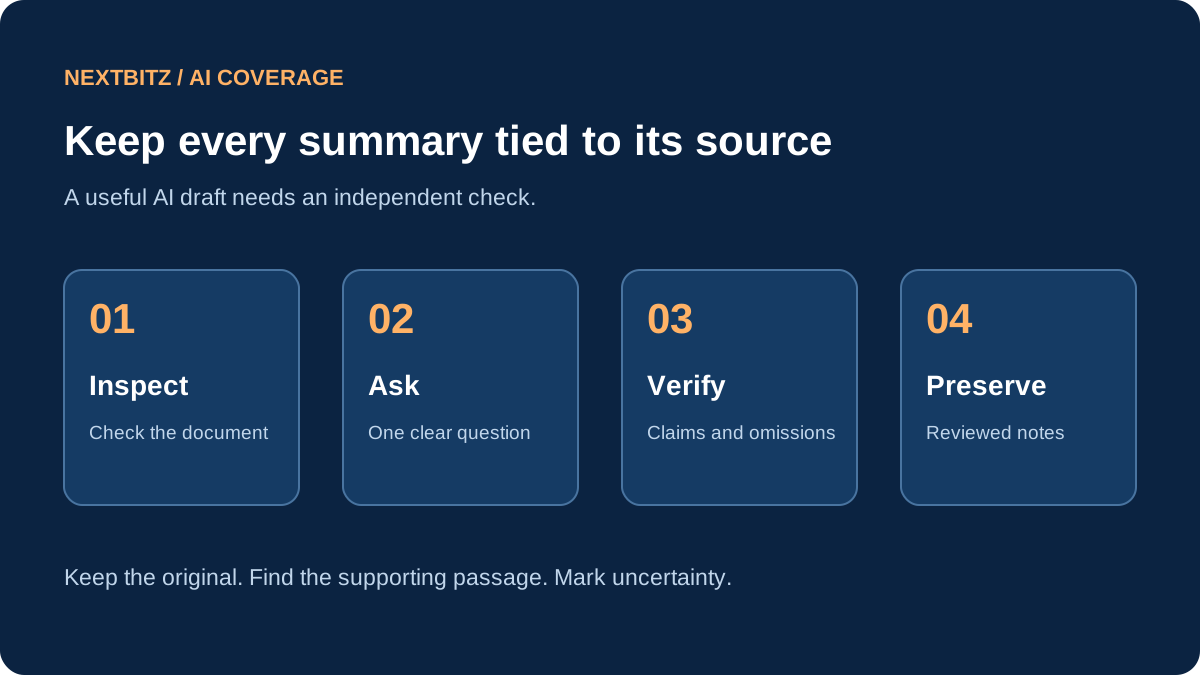
A long document can contain the answer you need and enough surrounding detail to make it hard to find. An AI summary can provide a starting outline, highlight topics to review, or help turn ordinary instructions into a checklist. The challenge is preserving the difference between what the source actually says and what the assistant infers.
This practical guide explains how to summarize documents with AI and check the result. It is researched guidance, not a hands-on product review or a comparison of model accuracy. The optional Samsung T7 Shield drive can hold a separate copy of your files; it does not summarize documents or protect information uploaded to an online service. Product links are paid links. As an Amazon Associate I earn from qualifying purchases.
Decide what the summary needs to accomplish
Start with a concrete question. Do you want an outline of the main topics, a list of supplies, a comparison between two versions, or the steps in a procedure? A request for "the important parts" leaves the assistant to guess which details matter to you. State the purpose and the intended reader before choosing the format.
Keep the task narrow for the first attempt. For example, ask for the materials and preparation steps in a short instruction sheet you own. Avoid treating a summary as a replacement for a complete document when all conditions matter. Your goal is a useful navigation aid that points back to the source, not an uncheckable shortcut around reading it.
Choose a suitable practice document
Use an ordinary document without private information for the initial test. Make sure it opens correctly and contains readable text. If it is a scanned PDF, check its recognized text first; a page image that looks clear may still have a faulty text layer. Missing pages, reversed page order, and unreadable tables can affect what the assistant receives.
Write down the document title and version before processing it. If the file has page numbers, note whether printed page numbers differ from the PDF viewer's page count. That distinction helps you follow references later. Preserve the original and keep your practice copy separate so that an edited or shortened file does not quietly replace the material you meant to summarize.
Check the tool and account before uploading
Google's Gemini Apps help describes uploading documents and other supported files to ask questions or obtain summaries. Supported formats, usage limits, and feature access can change and may depend on your account. Check the current help for the tool you intend to use. Do not assume a file was fully processed simply because its name appeared in the conversation.
Review the account's current information about storage, sharing, retention, and training use. Follow your workplace's approved process for confidential records. If a small excerpt is enough, provide that excerpt rather than a complete file. Local processing is another possible route, but it still requires checking where files are saved and whether any part of the workflow sends data elsewhere.
Source: https://support.google.com/gemini/answer/14903178
Give a request that exposes missing information
Ask the assistant to use only the supplied document and to distinguish explicit statements from inferences. A useful example is: "Summarize the preparation steps in this file. Give a section heading or page reference for each item. If a time, quantity, or responsible person is not stated, write 'not stated.' Do not add outside advice." This creates specific claims you can check.
Request a compact output rather than an elaborate rewrite. A short outline with references is easier to verify than several polished pages. If the assistant cannot give reliable page references, ask for the exact section title and a short identifying phrase. Generated references can also be wrong, so treat them as pointers to inspect rather than proof of accuracy.
Compare the summary with the source
Open the original beside the draft summary. For each item, find the supporting passage and compare the wording. Pay attention to conditions such as "only if," "unless," and "before." A summary that drops a condition can turn a limited instruction into a general requirement. Check whether a recommended step was presented as mandatory or a tentative idea was presented as settled.
Check all names, dates, amounts, and quantities that matter to your task. Make sure the summary has not confused examples with instructions. If a passage is unclear, mark it for review and return to the source. Asking the same assistant whether it made a mistake is not an independent check; the source document is the reference you need.
Check what the summary leaves out
An accurate-looking summary can still omit the detail you most needed. Scan the source headings and compare them with the outline. Look at appendices, footnotes, tables, and revision notes that are relevant to your question. If the output describes only the beginning of a long file, ask which sections were considered and verify coverage yourself.
Use a second, targeted request for a clearly defined gap rather than repeatedly asking for a "better" summary. For example: "List exceptions to the preparation steps, using only the section titled Exceptions." Compare that response with the section. Combining several checked small results can be easier than accepting one broad output that compresses too much material at once.
Keep quotations and interpretations distinct
If you need an exact quotation, copy it from the original yourself and preserve its context. Do not rely on an AI-generated sentence inside quotation marks. A summary is normally a paraphrase, and a paraphrase can change emphasis even without introducing a new fact. Label your notes clearly so readers know what comes directly from the source.
For an opinion or recommendation, identify who expresses it in the document. Do not turn the assistant's interpretation into the author's position. When sharing a summary, include the document title, version, and an accessible reference to the original. This gives the recipient a practical way to verify details rather than relying on the confidence of the prose.
Organize originals and reviewed notes
Use a small folder structure that separates original documents, draft summaries, and checked notes. Include a date or version in the filename. Record unresolved questions near the summary, not in a chat you may lose track of later. Keep corrections visible while reviewing, then save a clearly marked checked copy when you finish.
Back up important files to a location appropriate for their sensitivity. Test opening a restored copy periodically. A backup helps you recover a document you already possess; it does not validate its contents or recall a file from a cloud AI service. Keep the privacy decision about uploading separate from the storage decision about preserving your own copy.
Consider the related storage product carefully
Samsung describes the T7 Shield as a portable external SSD. Check the current capacity, connection, compatibility requirements, and supplied cables for the exact model before purchasing. For this workflow, its practical role is storing a separate copy of original files and reviewed notes. It is not an AI accelerator or an automatic backup service.
Choose capacity based on the files you actually need to preserve and leave room for future versions. Follow the manufacturer's instructions for connecting and disconnecting the drive. If you use password protection, make a recovery plan for the password. A protective carrying case may help keep the drive and cable together, while labels can distinguish backup sets; neither replaces a tested backup routine.
Source: https://www.samsung.com/us/memory-storage/portable-ssd/portable-ssd-t7-shield-usb-3-2-1tb-blue-sku-mu-pe1t0r-am/
Know when a summary is insufficient
If you must follow every condition in a policy, agreement, or procedure, read the relevant original in full and use your usual review process. A summary can help identify where to look, but it cannot guarantee complete coverage. Stop relying on the draft when references do not resolve, contradictory passages remain unexplained, or the output adds claims absent from the source.
The repeatable routine is straightforward: choose the question, inspect the file, request a bounded summary, verify claims and omissions, and preserve checked notes alongside the original. AI can make the first pass easier. Your source checks make the resulting summary worth using.
Start the conversation with a thoughtful comment.