A spreadsheet formula can save time once it expresses the rule you actually need. AI can help draft that formula and explain unfamiliar functions, but a result that looks reasonable can still use the wrong rows, skip a condition, or mishandle an empty cell. The useful skill is combining a clear request with a small test you can check yourself.
This guide shows a practical way to use AI for spreadsheet formulas without handing it an entire private workbook. It is researched guidance, not a hands-on review or an accuracy benchmark. The optional Logitech M720 Triathlon mouse supports desk navigation; it does not provide an AI service or improve formula accuracy. Product links are paid links. As an Amazon Associate I earn from qualifying purchases.
Start with the rule, not the formula
Write down the calculation in ordinary language before opening an AI assistant. For a simple supplies sheet, you might want each row's quantity multiplied by its unit cost, followed by a total for completed purchases. State whether tax, shipping, blank rows, and cancelled entries belong in that total. A clear rule helps you recognize whether the proposed formula solves the intended problem.
Separate a calculated result from a judgment. Adding amounts is one task; deciding whether a purchase is justified is another. Keep the AI request focused on the calculation. If you cannot explain which rows should count, pause and decide that first. Otherwise, a mathematically valid formula can still answer a different question from the one you meant to ask.
Describe the spreadsheet precisely
Tell the assistant which application you use and identify the columns, the first data row, and where the result belongs. For example: "In Excel, column B is Quantity and column C is Unit Cost. Row 1 has headings. Give me a formula for D2 that multiplies B2 by C2. Explain what happens if either input is blank." Use invented data for the initial discussion.
If you want a total by status, describe the status column and its exact labels. If the workbook uses a table, give the table and column names. A formula copied from another application or language setting may use different separators or function names. Ask for an explanation of each argument rather than accepting a long expression you cannot inspect.
Understand what built-in AI can offer
Microsoft's Copilot in Excel guidance describes generating insights and suggesting or explaining formulas. It also instructs users to review and verify AI-generated content. Feature availability depends on the current product, account, and supported workbook conditions. Check Microsoft's current requirements for your setup rather than assuming a feature shown in a video is included in your account.
You can use the same verification routine with an assistant outside the spreadsheet application. That does not mean every assistant can access your workbook or apply a change safely. Provide a small sample and copy the suggested formula into a practice sheet yourself. Keep the original workbook available until you have checked both the formula and the resulting values.
Source: https://support.microsoft.com/en-us/excel/copilot/data-insights-with-copilot-in-excel
Build a test with answers you already know
Create a small practice table with a few rows. Use two items at three dollars each and one item at five dollars, for instance. The row totals should be six and five, and their combined total should be eleven. Write these expected answers beside the test before inserting the proposed formula. That gives you an independent comparison instead of letting the AI grade its own output.
Add an empty input, a zero quantity, and a row whose status should exclude it from the final total. Decide the intended result for each case. If returns or negative quantities are relevant, include one. These boundary examples often reveal a problem that ordinary positive numbers hide. Keep the sample small enough that you can calculate every expected result without relying on another complex formula.
Read the formula before filling it down
Check each range and cell reference. Does the formula begin at the first data row rather than the heading? Does its last row include everything you intended? If a fixed rate comes from one cell, determine whether that reference must stay fixed when the formula is copied. Ask the assistant to explain relative and absolute references using your sample.
Then fill the formula into only a few practice rows. Compare the copied expressions as well as their values. A formula can be correct in the first row and wrong farther down because a reference moves. Watch for circular references and error messages. Resolve the cause rather than hiding every error with a wrapper that makes the sheet look tidy while obscuring missing information.
Inspect the inputs as carefully as the calculation
Numbers stored as text, inconsistent dates, extra spaces in status labels, and mismatched units can distort a result. Check the raw cell values and formats. If a column mixes dollars and cents, or hours and minutes, settle on a consistent convention before testing. A precise formula cannot repair an undefined meaning in its inputs.
For imported data, inspect a few records at the start and end of the sheet and after any blank lines. Make sure a filter or sorting operation did not separate related columns. Keep a copy of the original import so you can trace a suspicious value. Ask AI to explain a specific discrepancy only after you can describe the actual inputs and the result you expected.
Use AI explanations as a learning aid
Request a short explanation alongside the formula: what each part does, which cells it reads, and what assumptions it makes. Ask for one worked example from your invented table. If the explanation conflicts with the expression, treat that as a reason to investigate. A confident description does not prove that the expression implements it.
Once the test passes, write a plain-language note near the calculation or in your workbook documentation. Include the purpose, expected inputs, and conditions that exclude a row. Someone reviewing the file later should understand the rule without reopening your AI conversation. If you change the column arrangement or business rule, revisit the test instead of assuming the previous result still applies.
Protect the workbook's contents
Avoid sending names, account numbers, employee details, or private financial records when invented rows will explain the problem. Review the assistant's current retention and training policies and follow your organization's approved process. A personal account and an organization-managed account can have different terms and controls. Check the actual account before uploading a file.
If sharing a workbook is necessary, review hidden sheets, comments, external links, and other material beyond the visible table. Copy only the relevant sample into a separate file when possible. Keep the sample free of sensitive details. Save your checked workbook to an appropriate location, and do not assume that deleting a chat removes every local or synced copy of an uploaded file.
Choose desk accessories for a real need
Logitech describes the M720 Triathlon as a multi-device mouse with Bluetooth and a compatible USB receiver connection. Check current operating-system support, receiver compatibility, and optional software requirements before buying. Its role here is navigating a workbook comfortably, especially when you switch between a practice sheet and documentation. It is an optional accessory, not a requirement for using AI.
The related products below also include a mouse pad and a compact keyboard. Try your existing equipment first. Choose an accessory only if it solves a practical problem such as limited desk space or difficult pointer control. None checks your formulas for you. Careful test cases, clear rules, and a preserved original workbook remain the foundation of a dependable result.
Source: https://www.logitech.com/en-us/shop/p/m720-triathlon
Keep a repeatable verification habit
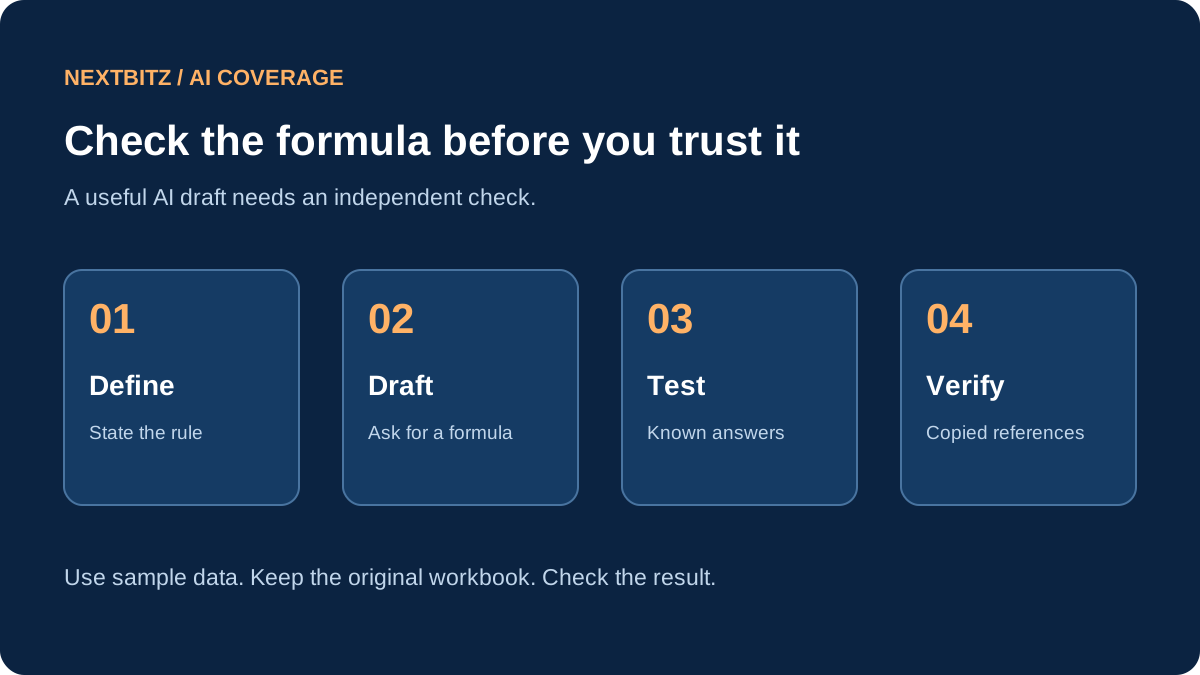
For each new calculation, define the rule, draft the formula, run known-answer tests, and inspect the copied references. Keep those tests in a small separate sheet so future changes are easier to assess. If a result matters, compare it with an independent calculation or have another person review it through your usual process.
AI can shorten the distance between a question and a first formula. Your verification turns that draft into something useful. Start with harmless sample data, learn what the expression does, and carry only a checked result into the workbook you rely on.
Start the conversation with a thoughtful comment.