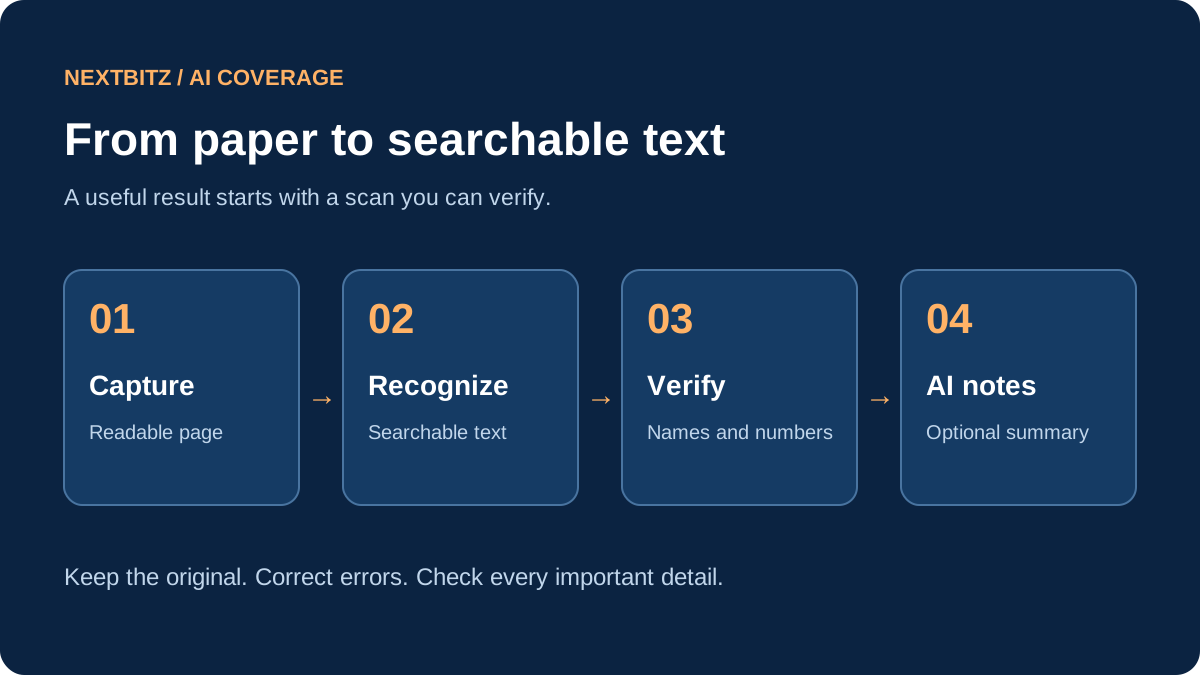
A scanned page can look perfectly readable while remaining impossible to search. The PDF may contain only a picture of the paper, so searching for a name or copying a sentence produces nothing. Optical character recognition, usually called OCR, identifies characters in that picture and turns them into text. Add a careful review, and a folder of scans becomes much easier to use.
AI tools can help organize or summarize the recognized text, but they introduce a separate task with separate risks. This guide explains how to make scanned documents searchable, how to check the result, and when an optional Epson WorkForce ES-60W scanner could fit your routine. It is researched guidance, not a hands-on scanner review. Product links are paid links. As an Amazon Associate I earn from qualifying purchases.
What is the difference between OCR and an AI summary?
OCR tries to recognize the words already present on a page. A searchable PDF keeps the scanned image and includes recognized text that a compatible viewer can search. That text may contain mistakes even when the page image looks correct. A summary takes the extracted words and produces a shorter account of the document. It can omit details or introduce an interpretation you did not intend.
Not every OCR feature is a generative AI system, and a scanner does not need a chatbot to create searchable files. Think of capture, recognition, and summarization as three separate stages. Keep the original scan available, check the recognized text, and only then decide whether an AI summary adds value. A neat paragraph should never replace checking the actual page when accuracy matters.
Start with one ordinary page
Choose a document you own that contains no sensitive details, such as instructions for organizing a cupboard. Identify a few words you expect to find after scanning. Include a short heading, a sentence, and a number so your test checks more than just whether the PDF opens. Starting small makes it easier to diagnose a problem without rebuilding a large archive.
A phone capture or a scanner you already own may be enough. Put the page on a flat surface, light it evenly, and keep all edges visible. Avoid shadows from your hand and reflections from glossy paper. Check the image at a readable size before processing it. If letters are blurry or cut off, capture the page again rather than expecting software to reconstruct the missing information.
Create a searchable PDF with compatible software
Look for an explicit searchable PDF or OCR setting in your scanning application. Saving a normal PDF does not necessarily add recognized text. Review the application's current help and confirm whether recognition happens on your computer or through an online service. Use official downloads, and check support for your operating system and the specific scanner model before installing extra components.
For a small amount of text already visible on a Windows screen, Microsoft PowerToys Text Extractor offers a different route: it copies recognized text to the clipboard. Microsoft's documentation lists Windows key + Shift + T as the default shortcut. This helps extract a passage, but copying screen text is not the same as creating a searchable PDF with its page images preserved.
Source: https://learn.microsoft.com/en-us/windows/powertoys/text-extractor
Check the result before filing it
Open the output in a PDF viewer and search for your test words. Try copying a short sentence into a plain-text editor, then compare it with the page image. If the search finds nothing, check whether OCR actually ran and whether you selected the correct output file. A successful file save is evidence that a file exists, not evidence that its text is accurate.
Inspect names, amounts, dates, and similar-looking characters such as zero and the letter O. Columns may be read in the wrong order, and a table can lose the relationship between a label and its value. Handwriting and faint printing deserve particular attention. Keep uncertain material marked for review instead of silently replacing it with a guess. For a long document, check every passage that will support a decision.
When an Epson ES-60W makes sense
Epson describes the WorkForce ES-60W as a portable single-sheet-fed document scanner with wireless scanning and ScanSmart software. Its product page lists OCR support for searchable PDFs and editable document formats. Confirm the current package, download requirements, supported systems, and exact model before purchasing. These are manufacturer-described capabilities, not NextBitz test results.
A single-sheet workflow may suit occasional paperwork you want to capture at a desk or while traveling. If your regular task involves thick stacks, compare a scanner with an automatic document feeder instead. Use Epson's instructions for accepted paper sizes, feeding, cleaning, and handling delicate originals. The related product is a capture tool; it does not include a general-purpose AI assistant or guarantee error-free recognition.
Source: https://epson.com/en/For-Home/Scanners/Document-Scanners/WorkForce-ES-60W-Wireless-Portable-Document-Scanner/p/B11B253201
Use AI to organize checked text
Once the extracted words are accurate enough for your purpose, an AI assistant can help propose a folder label, a brief outline, or a checklist. Give it one bounded task. For example: "Using only this text, list the supplies mentioned. If a quantity is missing, write 'not stated.'" That instruction makes missing information visible instead of inviting a plausible invented answer.
Compare every proposed item with the checked text. Do not let a summary turn a suggestion into a requirement or an estimated date into a deadline. Keep page numbers or a clear file reference alongside notes so you can return to the original. If you need to discuss a document with another person, say whether you are sharing the original scan, corrected extracted text, or an AI-assisted summary.
Protect the documents and their contents
Before uploading a scan or its text to a cloud tool, check the current account settings and policies for retention, training use, sharing, and deletion. Follow your organization's approved process for workplace records. For an initial experiment, use ordinary personal material rather than identification documents, confidential correspondence, or financial records. Recognition and summarization do not require you to test with private information.
Local files can also spread through cloud-sync folders, clipboard history, shared computers, and backups. Choose where to save both the image and the extracted text, and limit access appropriately. Protect the original paper if you still need it. A readable scan does not automatically meet every requirement for keeping an original, and this workflow is not a reason to destroy documents whose retention needs are unclear.
Build a filing routine you can maintain
Use consistent filenames with a date and a meaningful subject, such as "2026-10-11-cupboard-instructions.pdf." Keep raw scans separate from reviewed copies until you finish checking them. If a page is missing or unreadable, name that problem clearly and recapture it. A folder that honestly shows unfinished work is more useful than a polished archive that hides gaps.
Back up important files and test opening a restored copy. A scanner captures paper, OCR makes text searchable, and a backup supports recovery; none replaces the others. The related storage link below is optional. Select capacity and connectors for your existing setup rather than buying equipment solely because it appears beside this guide.
Do you need to buy anything?
Start with your current phone, scanner, and available software. Buy a dedicated scanner only when a repeatable test shows that capture is the part slowing you down. A document organizer may help separate pages waiting to be scanned from checked originals. An external drive may support your backup routine. Neither accessory improves OCR accuracy directly.
The useful outcome is simple: a readable original, text you can find, and notes you can verify. Begin with one page, test the search, correct important errors, and decide whether summarization saves effort. That sequence makes AI-assisted document work practical without treating every fluent output as trustworthy.
Start the conversation with a thoughtful comment.